Remove a plain background
Cut your picture out of its background in one tap.
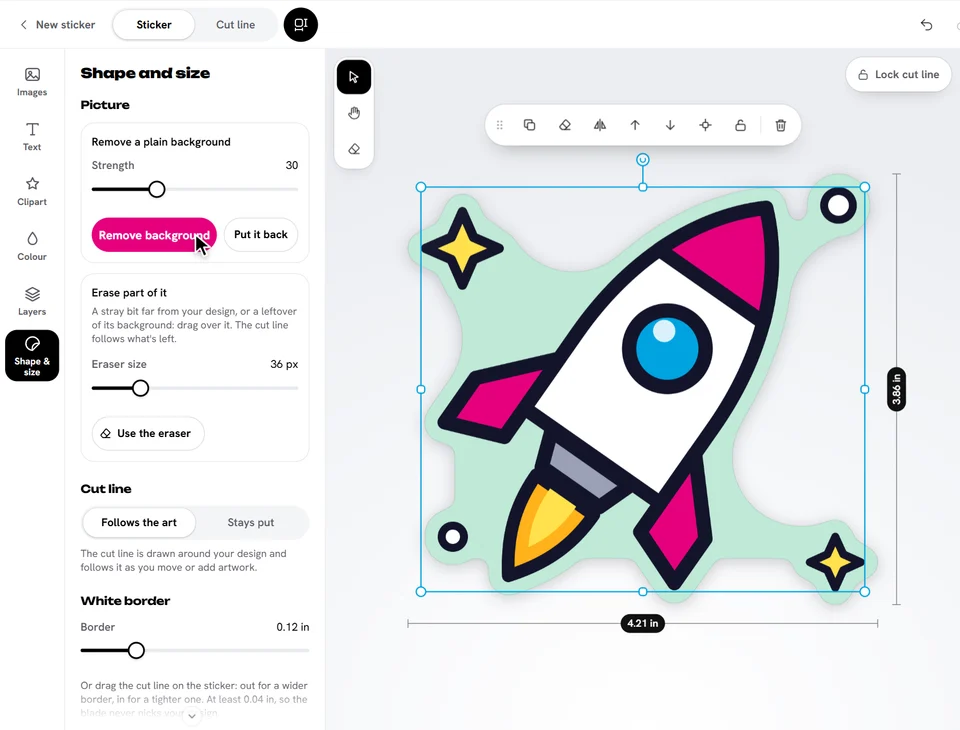
On a die cut sticker, a picture on a plain background has it removed as soon as you add it, so the cut line hugs your design. The sticker then takes that background's colour, so the border matches what your picture sat on (unless it was white).
Want the background after all? Tap Put it back in the message, or in Shape & size → Picture.
Remove it yourself
- Select the picture.
- Open Shape & size. Under Picture, find Remove a plain background.
- Set the Strength: higher removes more of the colours close to the background.
- Tap Remove background.
Ready to try it?
Open the designer