Lock the cut line or let it follow
Keep the sticker's outline where it is while you move your artwork.
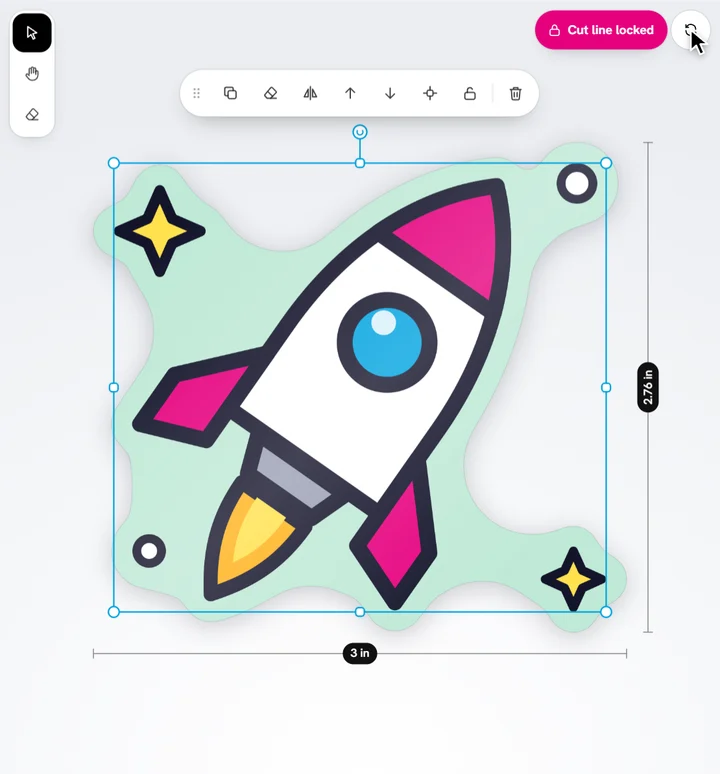
By default the cut line follows the art: move or add artwork and it's drawn again around your design.
- Tap Lock cut line at the top right of the stage (or Shape & size → Cut line → Stays put).
- Move your artwork inside the line. What crosses it is cut off, as on a shaped sticker. New artwork lands in the middle.
- Tap the round arrows next to the lock to draw the line again around your design (it stays locked).
Tap the lock again to let it follow your design. The line stays where it was until you change your artwork. Fit it now in the message fits it right away.
Ready to try it?
Open the designer