Fine-tune the cut line point by point
Drag, add or delete the cut line's points.
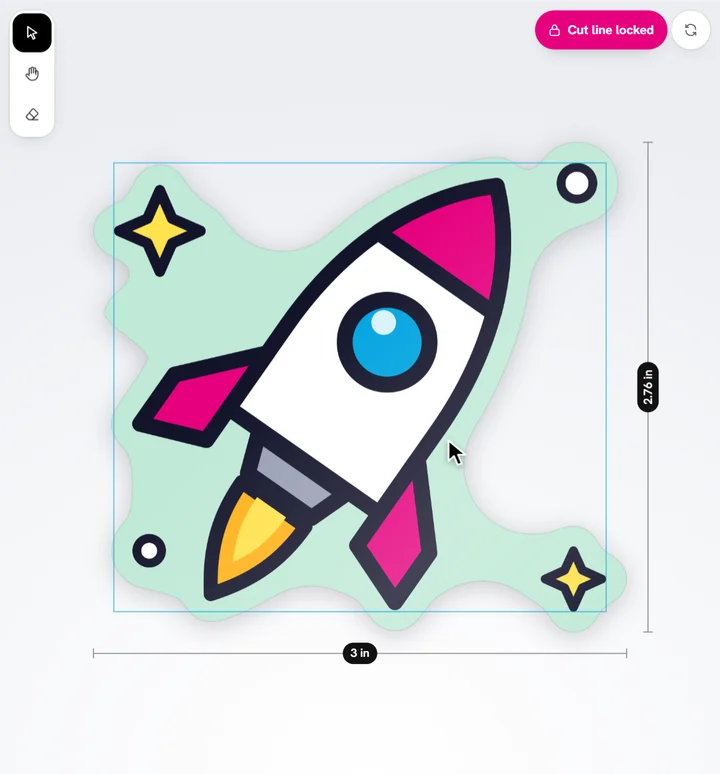
- Double-click (or double-tap) the cut line. Small white squares show on it.
- Drag a point to reshape the line. Only the line on each side of it bends.
- Click the line between two points to add one there.
- Pick a point and tap the bin in the bar along the top (or press Delete) to remove it.
- Tap Done (or press Escape).
Editing points locks the cut line, so it stays as you made it. Drawing it again, or changing the border, puts the points away.
Ready to try it?
Open the designer